Using Eclipse
The following sections explain how to install and setup Eclipse Mars (4.5, released June 2015) or newer to work with MATSim.
Prerequisites
You must have the following software installed and ready to use:
- Java 11 or newer
To use MATSim, you need to have a Java SDK (JDK) installed and not only a Java Runtime Environment (JRE). Best is to download and install JDK 11 from adoptopenjdk.net. - Eclipse
Download Eclipse from eclipse.org, the package “Eclipse IDE for Java Developers” is enough for MATSim. Unzip the downloaded file and place it on some suitable location on your harddisk. Eclipse does not require any special installation. Experience shows that on Windows it’s best to install Eclipse at a location that does not require administrative rights. - Configure Eclipse
Use UTF8 as File-Encoding. - Make sure Eclipse is running from a JDK
Configure Eclipse to use a JDK
Cloning the MATSim project to Eclipse
“Cloning” refers to the task of getting a copy of the MATSim source code from the server that keeps the most current and official source code version. The copy will be placed on your computer and allows you to work with the source code. To clone the MATSim source code to your computer, start Eclipse, then:
- choose menu
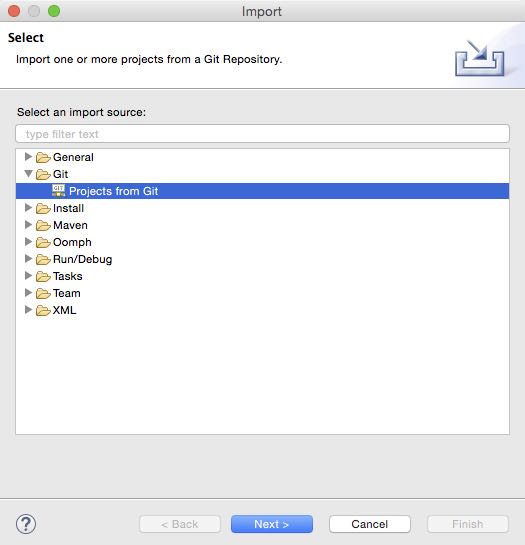
File > Import…, and thereGit > Projects from Git. ClickNext.
- select
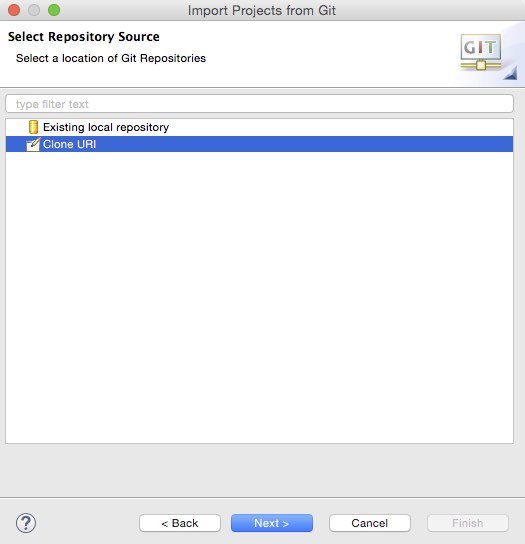
Clone URIand clickNext.
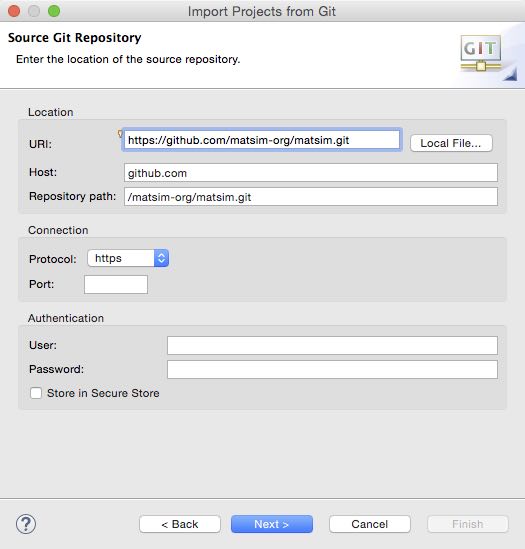
- Enter the following URI:
https://github.com/matsim-org/matsim.git.
- Choose the
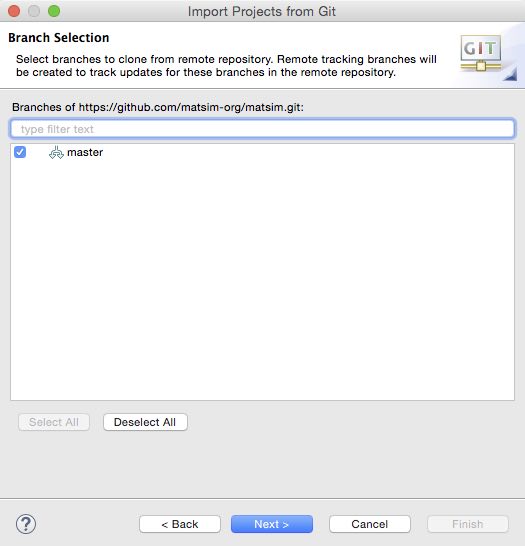
masterbranch and clickNext.
- Specify a location on your computer, where the source code should be saved. Eclipse makes a suggestion on where to put the data. It’s okay to use that, but make sure you’ll remember the location as we will need it later again!
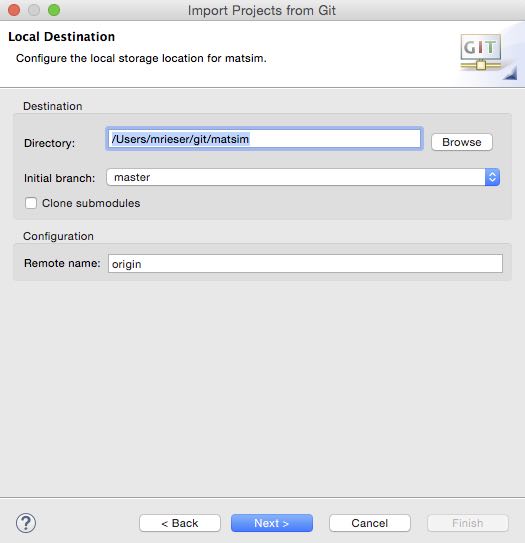
-
When you click on
Next, Eclipse will start downloading the source code. Depending on your internet connection, this may take some minutes. -
After all the source code has been downloaded, Eclipse will ask you how to import the source code. Choose
Import as general projectand clickNext.
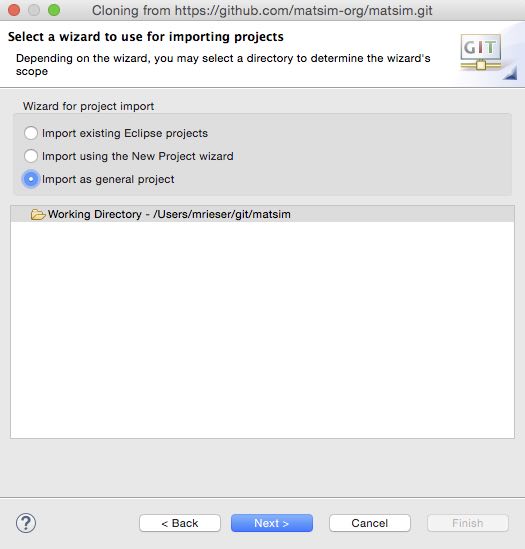
- Name the project
matsim-all. Important: Name itmatsim-all, and not just “matsim” as proposed!
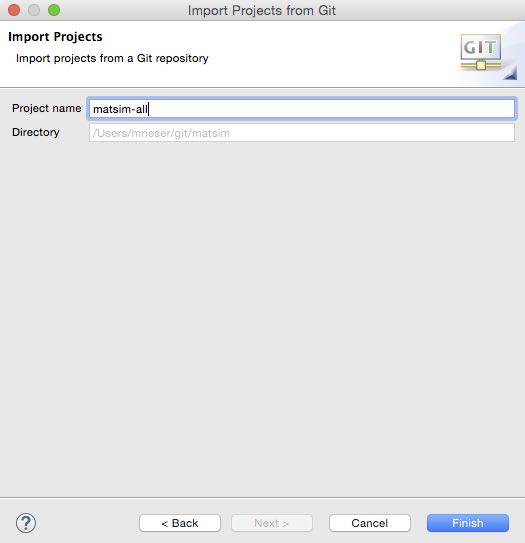
-
You should now end up with a project
matsim-allin Eclipse. -
Choose menu
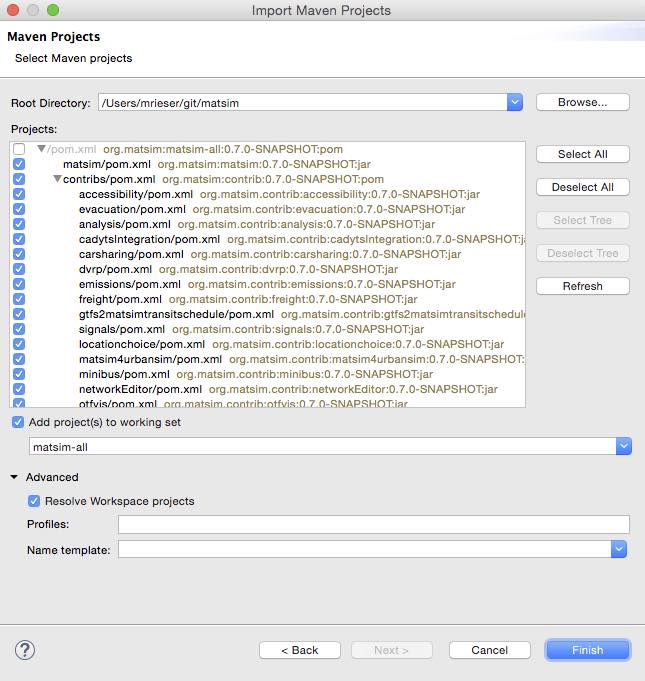
File>Import, thenMaven > Existing Maven Projects. ClickNext.
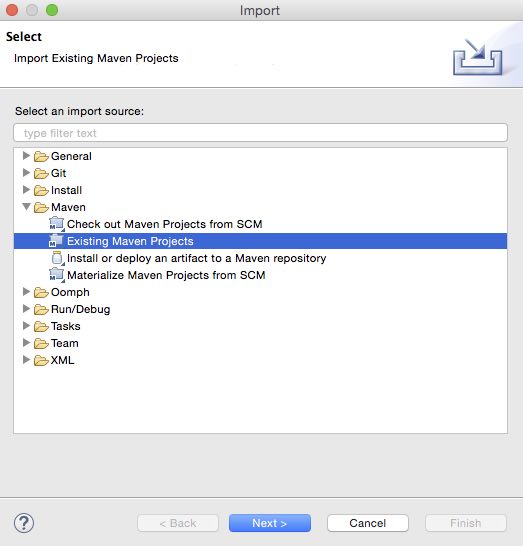
- Navigate to the directory, where you stored the MATSim source code (see some steps above). Once you’ve selected the right directory, it should list the matsim project, and all the contribs. Select the matsim project and those contribs that you need. If you are unsure, just start with the matsim project. These last two steps can be repeated any time when you need additional contrib.
- Click on
Finish. Eclipse will now add the selected parts as projects to Eclipse. Depending on the number of contribs you selected, this might take a moment.